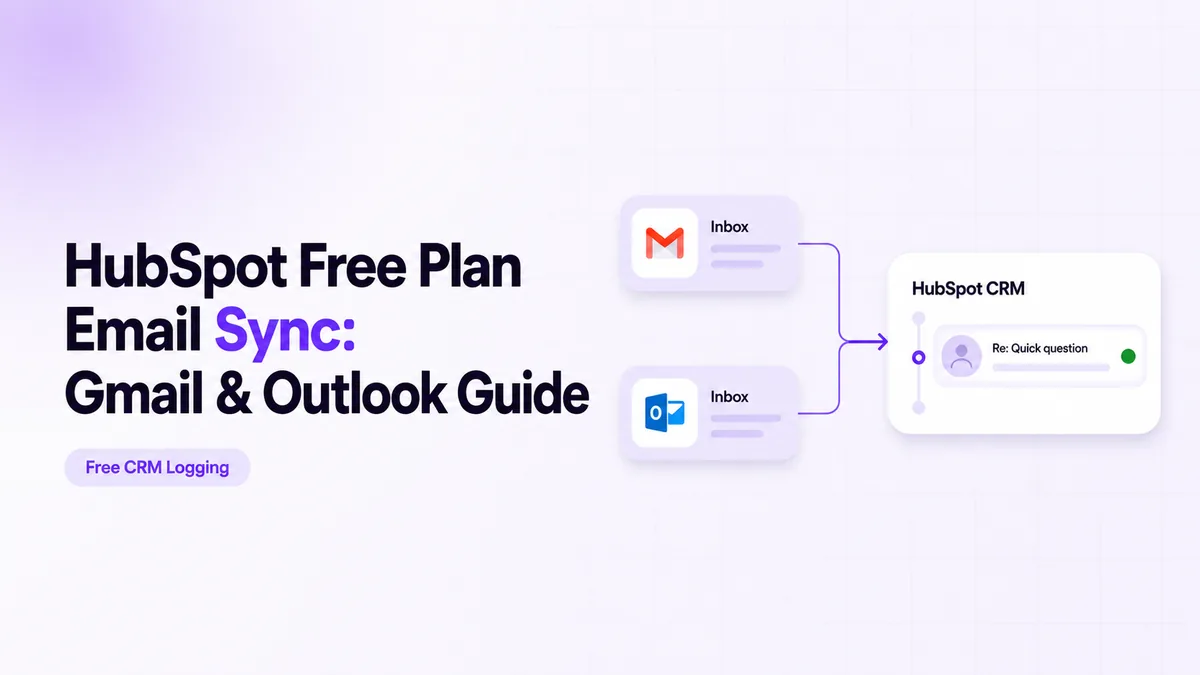
HubSpot Free Plan Email Sync: Gmail & Outlook Guide
When 20 sales reps run outreach from different inboxes, the CRM timeline becomes useless unless replies land under the right contact and owner. A HubSpot free plan email sync for Gmail and Outlook can cover the basic logging layer, but it will not replace a sales engagement platform, a deliverability tool, or a custom reply-routing setup for outbound teams.
The practical question is where HubSpot should sit in the workflow. For most teams, the answer is simple: use HubSpot as the system of record for contacts, owners, replies, meetings, tasks, and deal movement, while Gmail, Outlook, or a cold outreach platform handles the actual send path. In 2026, the HubSpot Free Tools pricing page states that free accounts can add 1,000 contacts and connect email to Gmail, G Suite, and many versions of Outlook.
Key Takeaways
HubSpot free plan email sync is best used as a controlled CRM logging and reply layer, not as a full outbound sequencing system. Start by deciding which emails should create CRM activity, which replies should trigger rep action, and which send path, Gmail, Outlook, or Instantly, should own the first outbound touch.
What Is HubSpot Free Plan Email Sync?
HubSpot free plan email sync connects a rep’s personal Gmail or Outlook inbox to HubSpot so one-to-one emails, logged replies, and selected sales activity appear on CRM records. In 2026, HubSpot’s connected inbox FAQ says a connected inbox is required to send emails through the CRM and use certain Sales Hub and Service Hub features.
The scope is narrower than many teams expect. HubSpot can log email activity, associate messages with contacts, show tracked engagement where available, and let reps reply from CRM records. It is not meant to rotate domains, throttle cold outreach across many mailboxes, or manage high-volume outbound sequencing.
That distinction matters if your team uses Instantly for cold outreach. Instantly can manage campaigns, leads, and reply events through its API and webhooks, while HubSpot should receive the sales-relevant result: the contact, owner, reply state, meeting event, and CRM timeline entry.
Key Automation Opportunities
HubSpot free plan email sync creates value when it removes manual CRM updates from normal rep behavior. In 2026, HubSpot’s personal email documentation says a connected personal email can send one-to-one emails from the CRM, log email replies, and give access to sales tools in the inbox.
- Reply logging keeps timelines readable: connect each rep’s inbox so replies from known contacts land on the contact record instead of staying buried in Gmail or Outlook.
- Contact creation reduces copy-paste work: when a logged email involves a new recipient, HubSpot can create a CRM contact from the message context.
- Owner assignment preserves rep accountability: logged activity should carry the correct HubSpot owner, especially when campaigns are started outside the CRM.
- Task creation turns replies into follow-up work: interested replies can create tasks for the assigned rep, while bounces and out-of-office replies can be excluded.
- Deal association keeps sales context intact: email activity should attach to the contact, company, and open deal when the handoff has moved beyond first reply.
The high-value gap is not “sync every email.” The useful build is deciding which events deserve CRM action. A reply from a live prospect should move quickly. A tracking open, an auto-reply, or a bounce should usually update a field without waking a rep.
Step 1: Decide What Gmail And Outlook Should Sync
The first step is to define which inbox behavior should create HubSpot activity and which behavior should stay out of the CRM. In 2026, HubSpot’s Office 365 add-in documentation says the Log feature can add emails to contact records and associated records, while the Track feature monitors opens and engagement.
Start with a two-column map: “log to CRM” and “do not log.” Sales replies, meeting confirmations, pricing questions, and handoff messages belong in HubSpot. Internal threads, prospecting drafts, automated warmup messages, delivery tests, and personal inbox noise do not.
For Gmail, install the HubSpot Sales Chrome extension only for the accounts reps actually use for customer-facing mail. For Outlook, use the Office 365 add-in when the mailbox is hosted on Microsoft 365. HubSpot notes that Microsoft 365 shared mailboxes are not supported for personal email connection, so do not base rep ownership on a shared sales@ inbox.
Verification is simple: send one test email from each rep to a controlled contact, log it, reply from the recipient inbox, and confirm the activity appears on the right contact timeline with the right owner. If ownership is wrong in this test, it will be wrong at scale.
Step 2: Set Logging Rules Before Reps Start Sending
The second step is to configure logging rules before any sales rep relies on HubSpot as the source of truth. In 2026, HubSpot states that attachments log by default only when the overall email is under 50 MB in its connected inbox FAQ.
Choose one logging mode per team, not per personal preference. For small teams, logging all emails to and from known contacts is usually enough. For outbound-heavy teams, reply-only logging is safer because it avoids filling the CRM with low-signal prospecting attempts.
Pay close attention to the BCC and forwarding addresses. HubSpot’s BCC and forwarding documentation says BCC logging records outbound emails, while forwarding is useful for logging received replies after the fact. That difference matters when a rep replies from mobile, where extensions and add-ins are less reliable.
Verify the setup with three cases: a new contact, an existing contact with an open deal, and an email with an attachment. Check whether the message appears on the contact, the company, and the deal. If attachments matter to your sales process, test the file-size edge case before reps rely on it.
Step 3: Route Outreach Replies Into HubSpot
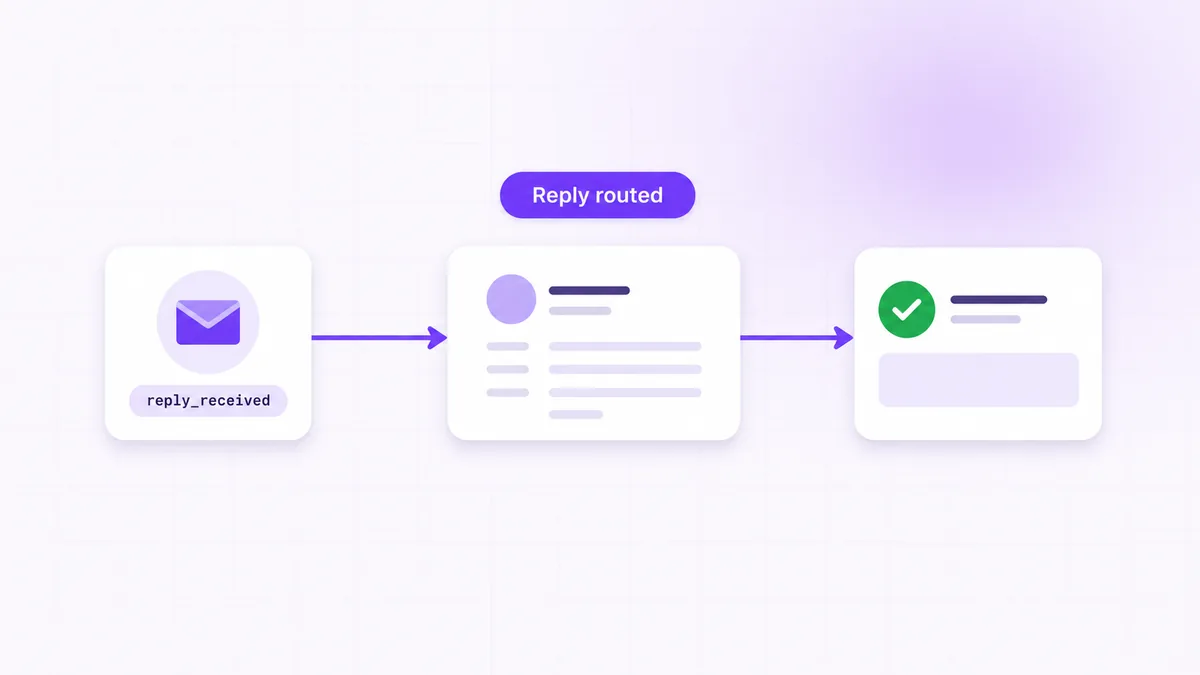
The third step is to route outbound replies into HubSpot without forcing reps to live inside the outreach platform all day. In 2026, Instantly’s webhook documentation lists reply-related event types including reply_received, auto_reply_received, and lead status changes such as lead_interested.
For an Instantly to HubSpot setup, treat Instantly as the campaign engine and HubSpot as the rep workspace. When Instantly receives a real prospect reply, the sync should find or create the HubSpot contact, assign the correct owner, log an email activity, and create a task or deal-stage update if the reply is positive.
The cleanest version uses webhooks instead of polling. A webhook payload should carry the campaign ID, lead email, reply subject, reply text, timestamp, and email account. Your HubSpot side then maps that payload to contact email, owner, lifecycle stage, last reply date, and a timeline email.
If your team only needs basic contact movement, HubSpot’s native integration or a connector may be enough. If reps need to reply through HubSpot after an Instantly campaign starts the conversation, custom routing is usually needed so ownership, threading, and activity association do not break.
Step 4: Test Limits, Ownership, And Failure Paths
The fourth step is to test the operational limits before the workflow touches real campaigns. In 2026, Google lists Apps Script URL Fetch quotas of 20,000 calls per day for consumer accounts and 100,000 calls per day for Workspace accounts in its Apps Script quotas documentation.
Even if you are not using Apps Script, the principle holds: every connector has limits. HubSpot API calls, Google mailbox access, Microsoft throttling, Zapier task volume, and webhook retries all become real once 20 reps start producing replies at the same time.
Build a test matrix with four outcomes: interested reply, not interested reply, bounce, and out-of-office reply. For each one, confirm the HubSpot contact updates correctly, no duplicate contact is created, the owner is preserved, and the rep sees only the tasks that require action.
Also test recovery. Disconnect one mailbox, send one malformed webhook, and exceed a small artificial rate limit in staging. A good sync should retry safely, store failed events, and let an admin replay them without creating duplicate emails on the timeline.
Tools & Integrations For HubSpot Free Plan Email Sync
The right tool depends on whether you need simple inbox logging, no-code movement between apps, or a custom event-driven sync. In 2026, HubSpot Data Sync supports one-way or two-way sync between HubSpot and other apps, while Zapier’s HubSpot integration connects HubSpot with thousands of app triggers and actions.
Use native HubSpot inbox connection when reps mainly send and reply through Gmail or Outlook. Use Zapier when the workflow is low-volume and the business rule is simple, such as “new HubSpot contact creates a row” or “new reply creates a task.” Use a custom integration when you need deterministic ownership, deduplication, reply classification, and replayable error handling.
For custom builds, the core HubSpot endpoint is the email activity object. HubSpot’s email engagement API lets a system create email activities with fields such as hs_timestamp, hubspot_owner_id, hs_email_direction, subject, body, and associations. Those fields are the difference between a useful CRM timeline and a pile of unowned imported messages.
Common Mistakes To Avoid
The most common failure is syncing too much activity instead of syncing the few events reps actually need. In 2026, Microsoft’s Exchange Online sending limits include a 10,000-recipient-per-day mailbox limit and a 30-message-per-minute rate limit for Exchange Online, which is a reminder that normal inbox infrastructure is not built for unrestricted outbound volume.
- Using HubSpot as the cold outreach sender creates deliverability and workflow pressure that belongs in a dedicated outreach tool.
- Connecting shared inboxes as personal inboxes breaks ownership because HubSpot expects a personal email to be unique to one user.
- Logging every campaign touch floods contact timelines with low-signal events and makes real replies harder to spot.
- Skipping deduplication by email address creates duplicate contacts when Instantly, Gmail, Outlook, and HubSpot all touch the same lead.
- Ignoring auto-replies and bounces causes reps to chase messages that should have updated a status field quietly.
The fix is boring and effective: map event types, define owner rules, test contact matching, and keep a failure queue. If the CRM timeline is not readable after 50 test replies, it will not survive 5,000 campaign events.
Conclusion
HubSpot free plan email sync is useful when Gmail and Outlook activity needs to appear in the CRM, but it needs clear rules if outbound starts in Instantly or another campaign tool. Use HubSpot for reply visibility, ownership, tasks, and deal context, then keep high-volume sending outside the CRM. For teams that need Instantly replies routed into HubSpot with clean rep ownership, CogworkLabs builds CRM & sales automation services for sales reps.
 Zeeshan Ahmad
 Awais AhmadJul 9, 2026
 Zegham Ali
 Mughees Rehman