Best Of
Best Voice AI for Outbound Sales Calls: 2026 Guide
Use this updated 2026 guide to evaluate the best voice ai for outbound sales calls 2025 shortlist for compliance, CRM integration, scale, and payments.
 Awais AhmadJul 10, 2026
 Awais AhmadJul 10, 2026
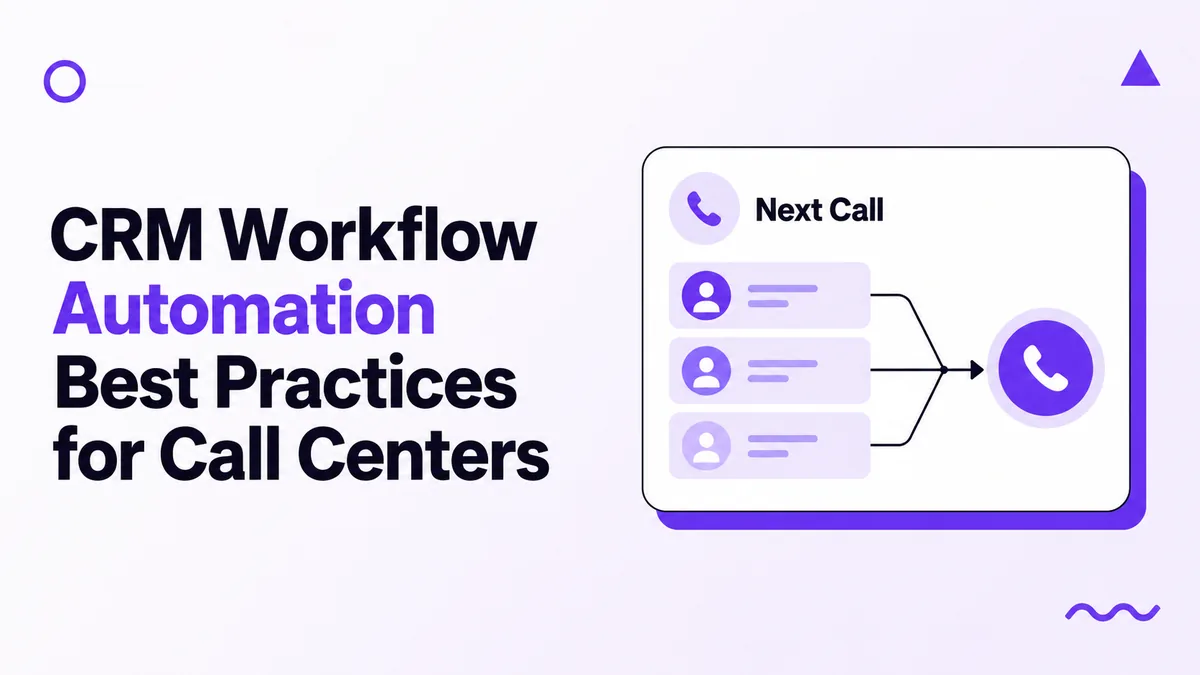
When a call-center rep has to inspect three tabs before deciding who to dial, the CRM is already costing talk time and corrupting follow-up data. The practical way to integrate workflow automation with existing CRM best practices is to make the CRM the system of record, let events start narrowly scoped automations, and return every outcome to the record that created it.
For a phone-heavy team using Close CRM, that means aligning statuses, opportunity stages, Smart Views, call outcomes, and external outreach before switching on sequences. In 2024, Salesforce reported that sales reps spent 70% of their time on non-selling work across its survey of 5,500 sales professionals in 27 countries (Salesforce, Sixth State of Sales). The integration should remove data entry and queue maintenance without hiding decisions, consent, or ownership.
A reliable call-center integration connects lead intake, assignment, dialing, follow-up, and reporting around one record and one next action. As of 2026, Close Workflows provides 9 step types, including calls, SMS, tasks, assignment, filtering, and record updates, which is enough for most first-pass queues without external orchestration.
You need admin access, a controlled data model, one automation platform, and a test cohort before editing live queues. As of 2026, Close makes Workflows available on 2 current plans, Growth and Scale (Close, Workflows).
Allow four to six hours for configuration and one monitored week. Prepare:
Start by documenting the current record lifecycle before changing any automation. As of 2026, Close's Event Log exposes the last 30 days of object changes, giving you a bounded window for checking what existing workflows actually touched (Close, API Overview).
Verify: Select five recently worked leads and reconstruct why each entered its current queue. If the reason depends on tribal knowledge, the model is not ready for automation.
Create one authoritative field for each routing decision and one stage for each commercial milestone. As of 2026, Close separates custom fields across 4 practical scopes: Leads, Contacts, Custom Activities, and Opportunities (Close, Custom Fields).
A compliance workflow automation CRM pattern should gate automated calls and texts on consent status, suppression flags, and channel. In 2026, the FCC states that autodialed texts to mobile phones generally require prior consent (FCC, Stop Unwanted Robocalls and Texts).
Verify: Try to publish a qualification activity without required data, and confirm a suppressed contact cannot enter an outreach queue.
Build Smart Views as mutually understandable queues, not saved searches with overlapping logic. As of 2026, Close recommends at least 4 available reps for its Predictive Dialer and describes 10 or more as the most effective staffing level (Close, Using the Predictive Dialer).
The benefits of CRM workflow automation and key challenges it solves become visible here: reps stop choosing records manually, while managers can inspect why a lead is callable. Close excludes leads called within 1 hour and abandoned predictive calls within 72 hours.
Verify: Compare the total count across rep queues with the source population and investigate duplicates or unassigned records before enabling dialers.
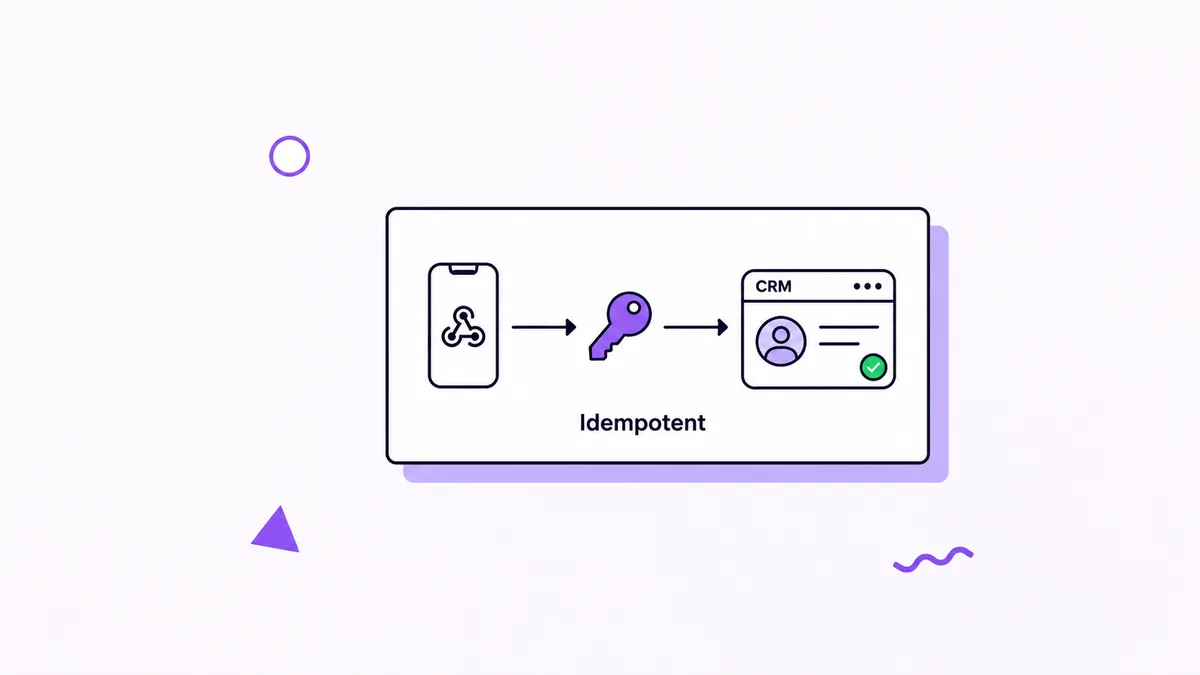
Connect external systems through event-driven writes that preserve Close IDs and reject duplicate requests. As of 2026, Close allows 40 webhook subscriptions per organization, with higher allowances up to 500 for certain automation platforms (Close, Webhooks).
lead_id, contact_id, opportunity_id, event ID, timestamp, and consent fields with every request.Among the best Zapier alternatives for CRM deal automation workflows, Make fits branching logic and n8n fits custom auth or data residency needs. Automated CRM workflows for business efficiency still need explicit ownership and error queues.
Verify: Replay the same test event twice. The second delivery should update or no-op, never create a second lead or task.
Start workflows from business events, then stop them as soon as the desired human response occurs. As of 2026, Close offers 9 workflow step types and supports Goals that stop active runs when events such as replies, meetings, or status changes occur (Close, Workflow Steps).
The best practices for CRM workflow automation and risks of over-automation meet at stop rules. A sequence that keeps texting after a borrower replies is not efficient; it is a governance failure.
Verify: Run one test lead through every branch, including reply, opt-out, reassignment, failed API call, and stage change.
Validate the system with operational metrics before expanding it to every rep and lead source. As of 2026, Close recommends filtering call reports for conversations longer than 2 minutes when reviewing meaningful engagement (Close, Call Reports).
Verify: Every dashboard total should reconcile to a saved Smart View or export. If management cannot reproduce a metric from source records, do not use it for compensation or capacity planning.
You can now automate repetitive handoffs while keeping call eligibility and pipeline state visible in Close. As of 2026, Make documents throughput of up to 300 incoming webhook requests per 10-second interval, although production design should still queue, retry, and rate-limit writes (Make, Webhooks).
Trigger: A web form creates a qualified funding inquiry. Action: Match by email or phone, assign by territory and capacity, set Next Call At, and place the lead in New Leads.
 Live
LiveAutomate Workflows Between Phone System And Crm
automate workflows between phone system and CRM with Close Smart Views, dialer queues, and funding-stage follow-up.
Trigger: A promised callback time passes without a completed call. Action: Create a high-priority task, move the record into Callbacks Due, and notify the owner without changing the opportunity stage.
Trigger: A required document custom activity is published. Action: Update the opportunity to Docs Collected, assign the underwriting handoff, and schedule a status check if no submission activity appears within one business day.
Trigger: A lead reaches its re-engagement date with valid consent and no open opportunity. Action: Start a short call, SMS, and email sequence, then stop on reply, opt-out, qualification, or disqualification.
These examples cover the challenges addressed by CRM workflow automation: delayed response, inconsistent ownership, stale records, and missing follow-up evidence.
Most failures come from overlapping rules, weak identifiers, and automations that can write without guardrails. As of 2026, Close has no built-in duplicate-detection tool in the UI and offers a one-time support-assisted bulk merge after you review a generated report (Close, Finding and Merging Duplicates).
429 responses with exponential backoff and cap retry attempts.The most common implementation questions concern event flow, source-of-truth rules, and safe automation boundaries. As of 2026, Close's developer platform supports both webhooks and a 30-day Event Log, giving teams 2 complementary ways to observe CRM changes (Close, Developer Platform).
Automated outbound platforms integrate through native connectors, webhooks, or API calls tied to stable CRM record IDs. The outbound system receives an eligible contact, performs the call or message, then returns delivery status, outcome, timestamp, and disposition to the same record.
CRM and marketing workflows should exchange lifecycle events rather than copy every field continuously. Send only the fields needed for segmentation and attribution, then write engagement, consent changes, and qualified handoffs back with a source event ID.
CRM workflow automation saves time by maintaining call queues, creating follow-up tasks, and recording outcomes automatically. Reps spend less time searching, assigning, and updating records, while managers get consistent data for coaching and forecasting.
CRM workflow triggers should start from precise events such as a lead creation, field change, completed activity, elapsed callback time, or opportunity-stage update. Add eligibility filters and a stop condition before adding delayed outreach.
CRM data should enter outreach workflows through a minimal payload containing record IDs, owner, channel permission, timezone, and message context. Delivery and response events should write back to the same IDs rather than creating parallel contact records.
Workflows automate CRM updates by mapping a trigger's fields into controlled actions such as assigning an owner, changing a status, creating a task, or updating an opportunity. Each write should have one authoritative workflow and an audit timestamp.
CRM workflow automation solves slow lead response, missed callbacks, inconsistent ownership, stale stages, duplicate outreach, and incomplete reporting. Guardrails are still required because automation can reproduce a bad rule faster than a rep can notice it.
A live integration is valuable when every lead has one owner, one current stage, and one defensible next action. As of 2026, Close retains 30 days of Event Log history, which is enough for routine audits but not a substitute for long-term reporting storage. For a practical implementation pattern, see how CogworkLabs can automate workflows between phone system and CRM.
Use this updated 2026 guide to evaluate the best voice ai for outbound sales calls 2025 shortlist for compliance, CRM integration, scale, and payments.
Awais AhmadJul 10, 2026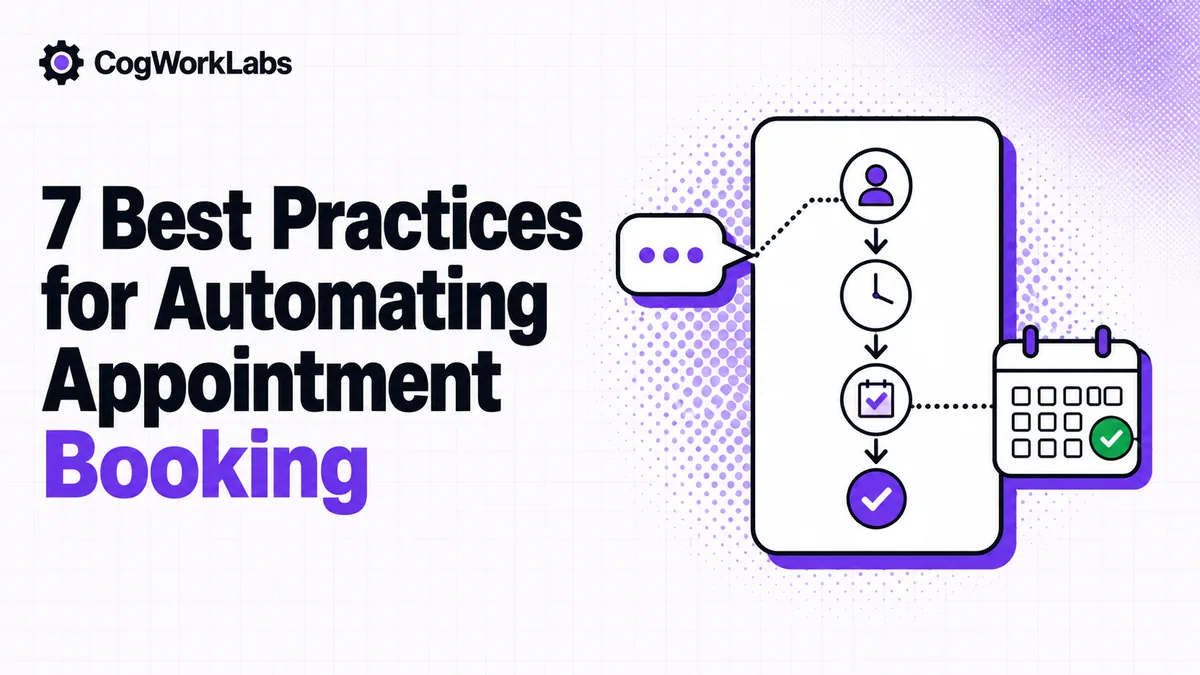
Learn best practices for automating appointment booking with SMS follow-up, calendar workflows, reminders, and reporting that turn more leads into meetings.
 Zeeshan AhmadJul 10, 2026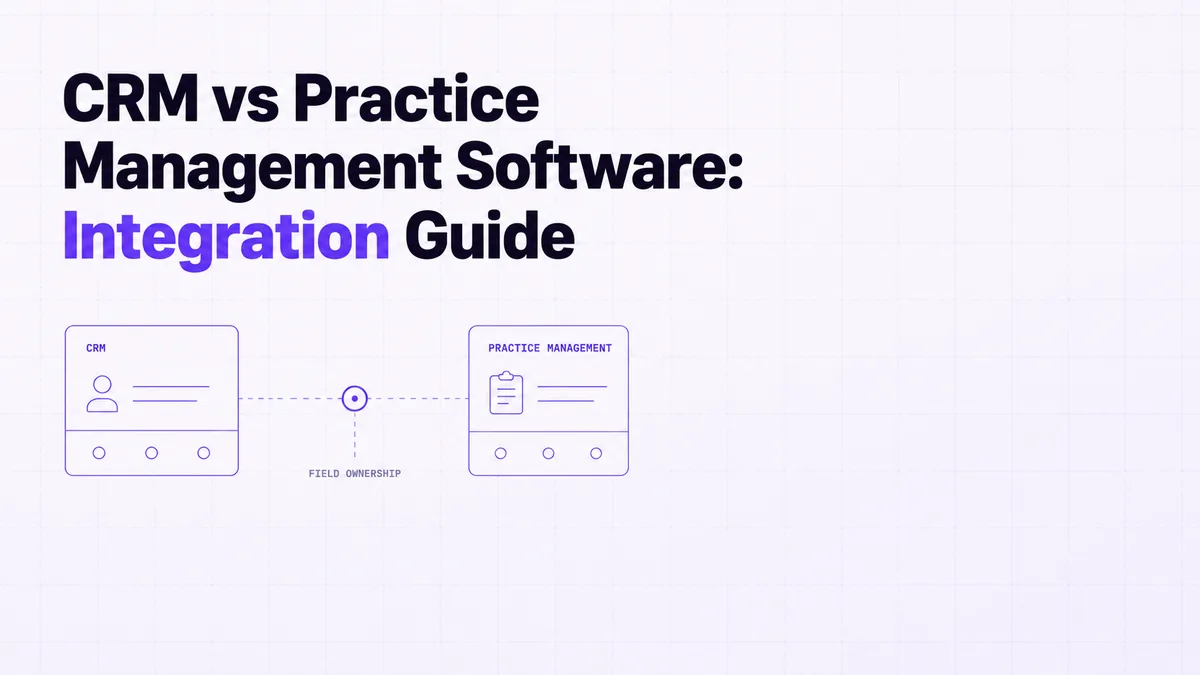
Use difference between crm and practice management to decide what belongs in each system, where to integrate, and how workflows should connect.
 Zegham AliJul 10, 2026