Pipedrive Marketing Automation Integration Guide
Leads go stale fastest when marketing captures them in one system and sales learns about them somewhere else. A pipedrive marketing automation integration with sales crm fixes that handoff by making source, owner, status, next action, and follow-up timing arrive in Pipedrive before a rep has to ask where the lead came from.
The practical goal is not to connect every channel because a connector exists. It is to create one reliable path from website forms, Telegram, WhatsApp, LinkedIn, email campaigns, and manual entry into a sales process that managers can audit. In 2026, Salesforce reported that sales reps spend 60% of their time on non-selling tasks, which is exactly the category CRM routing, field completion, and follow-up reminders should reduce (Salesforce, 40 Sales Statistics to Watch for in 2026). For a B2B team, the integration earns its keep when every new lead has a source, a responsible manager, a required next action, and a visible path to qualified, proposal, negotiation, won, or lost.
Key Takeaways
A Pipedrive marketing automation integration should move every qualified lead, source label, owner, and next action into the sales record before the first follow-up. In 2026, Pipedrive says its marketplace supports 500+ integrations, which is enough coverage for most B2B lead-source stacks (Pipedrive, Sales CRM). The highest-value workflows are source capture, owner assignment, activity creation, inactivity alerts, and reporting by channel.
What You'll Need
You need admin access, source-system credentials, and a clean field model before connecting anything. In 2026, Pipedrive documents email sync on three plan tiers, Growth, Premium, and Ultimate, so confirm plan access before promising Gmail or Google Workspace behavior (Pipedrive, Email Sync).
Prepare:
- A Pipedrive admin user with permission to edit fields, automations, pipelines, reports, and integrations.
- Access to Make, Zapier, or a developer who can use the Pipedrive API.
- Admin credentials for website forms, email campaigns, Telegram, WhatsApp Business, LinkedIn Ads, Gmail, and Google Calendar.
- A two-hour mapping session for fields, sources, owners, and duplicate rules before the build starts.
Step 1: Map the CRM Objects and Required Fields
By the end of this step, Pipedrive will have the data structure the integration needs. In 2026, Pipedrive documents 16 custom field types, which is enough to model source, country, language, expected deal size, product, customer type, and follow-up date without abusing free-text fields (Pipedrive, Custom Field Types).
- In Pipedrive, go to Account menu > Personal preferences > Data fields.
- Create custom fields for Person, Organization, Lead, and Deal separately. Do not put every field on every object.
- Use single-option dropdowns for Lead source, Customer type, Language, Product / Service, and Lost reason.
- Go to Settings > Data fields, open each critical field, and mark it required where the sales process cannot continue without it.
Verify by creating one test lead manually. The record should reject missing required deal fields at the configured stage, and the salesperson should see only fields that matter for that object.
Step 2: Connect Lead Capture Sources to Pipedrive
By the end of this step, website, chat, paid, and manual sources will create leads with their original source intact. In 2026, LinkedIn documents both paid and organic lead-sync surfaces, distinguished during sync by a leadType value (LinkedIn, Lead Syncing).
- For website forms, go to Leads > Web Forms > New Web Form in Pipedrive, choose a template, and map every form field to a CRM field. Pipedrive notes that Web Forms require the LeadBooster add-on and deals admin permission (Pipedrive, Web Forms).
- For Telegram, create the bot in Telegram > @BotFather > /newbot, then send events to Make, Zapier, or your webhook endpoint. The Telegram Bot API sends webhook updates as HTTPS POST requests.
- For WhatsApp, use Meta Developers > My Apps > WhatsApp > Configuration and subscribe your webhook. The WhatsApp Business Platform webhooks send JSON payloads for message events.
- For LinkedIn, connect Lead Gen Forms through LinkedIn Ads access or a connector that supports the Ads Lead Sync API.
Verify by submitting one test lead per channel and checking that Lead source is populated without manual edits.
Step 3: Build the Pipedrive Marketing Automation Integration With Sales CRM Middleware
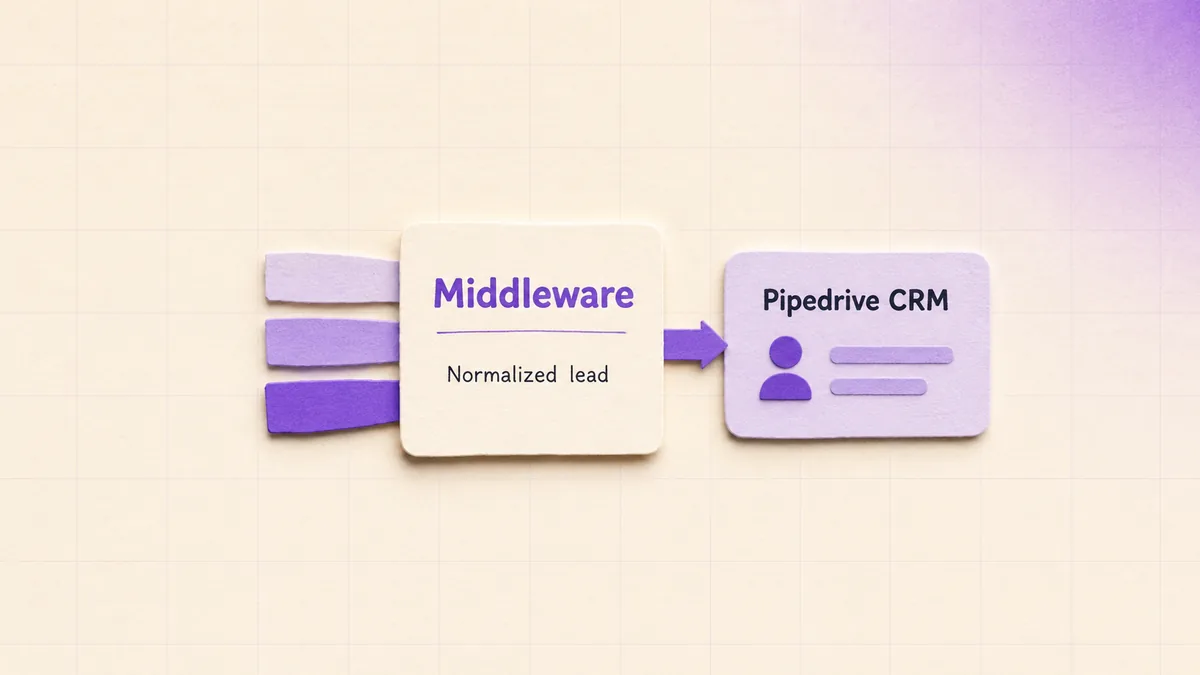
By the end of this step, Make, Zapier, or custom webhooks will normalize leads before Pipedrive receives them. In 2026, Make documents that older Pipedrive API v1 modules continue only until July 31, 2026, so new scenarios should use current Pipedrive CRM modules where available (Make, Pipedrive CRM Apps Documentation).
- In Make, go to Scenarios > Create a new scenario > Add module > Pipedrive CRM and select the trigger or action that matches your flow.
- In Zapier, go to Apps > + Add connection, search Pipedrive, authenticate, then build a Zap from the source app to Create Lead or Create Deal.
- For custom builds, create an endpoint that validates source payloads, normalizes phone and email formats, and writes to Pipedrive through the API.
- Store the raw source payload in a hidden note or audit field when compliance matters.
Verify by checking three things: the source app shows a sent event, the middleware shows a successful run, and Pipedrive shows the correct person, organization, lead, and source.
Step 4: Configure Pipedrive Marketing Automation Rules Inside the Sales CRM
By the end of this step, Pipedrive will assign owners, create tasks, and enforce follow-up discipline after the lead arrives. In 2025, Pipedrive describes automations as trigger-action rules, where one event starts the workflow and one or more actions update records, create activities, or send synced emails (Pipedrive, Automations First Steps).
- Go to Account menu > Tools and apps > Automations > + Automation.
- Create a trigger: Lead created or Deal created.
- Add conditions for source, country, language, expected deal size, or product.
- Add actions to assign the owner, create a follow-up activity, update the pipeline stage, and notify a manager when required.
- Use Next step > If/else condition when lead routing depends on more than one field.
For lost deals, use predefined reasons rather than free text. In 2024, Pipedrive documented that accounts can have up to 100 lost reasons, which is usually enough for clean reporting without making the dropdown unusable (Pipedrive, Lost Reasons).
Verify by creating a test lead for each branch and opening Tools and apps > Automations > History.
Step 5: Sync Email, Calendar, and Sales Activity
By the end of this step, reps can work from Gmail and Google Calendar without losing CRM context. In 2025, Pipedrive documents calendar sync through Personal preferences > Calendar sync, with Google and Microsoft calendar support called out in troubleshooting guidance (Pipedrive, Calendar Sync).
- For Gmail, go to Account menu > Personal preferences > Email sync, enter the primary email address, and complete the provider authorization. Pipedrive does not support email aliases for email sync, so use the mailbox the rep actually sends from.
- For Google Calendar, go to Personal preferences > Calendar sync, click Connect account, authorize access, and choose one-way or two-way sync.
- Add a rule that creates an activity whenever a new qualified lead enters the pipeline.
- Set activity types for Call, Demo, Follow-up, Compliance check, and Proposal review.
Verify by sending a test email, booking a test meeting, and confirming both attach to the correct person, organization, and deal.
Step 6: Test the Full Pipedrive Marketing Automation Integration With Sales CRM Reporting
By the end of this step, managers can see source quality, speed to lead, conversion, inactivity, and lost reasons. In 2026, Pipedrive says lead performance reports cover three lead outcomes: created, archived, and converted to deals (Pipedrive, Insights Lead Performance).
- Go to Insights > + > Report > Lead > Performance and group by Lead source.
- Create a Deal performance report for started, won, and lost deals.
- Create a Lead conversion report and filter by source, country, campaign, or responsible manager.
- Go to Insights > + > Dashboard and add reports for leads by source, conversion rate, pipeline value, inactive leads, lost reasons, and channel performance.
- Add one saved filter for leads with no activity in the next 24 hours.
Verify with a test batch of at least 10 records, including one duplicate, one lost deal, one WhatsApp lead, one LinkedIn lead, and one manually entered referral.
What You Can Now Automate
A completed integration lets sales react to lead behavior instead of waiting for someone to copy data between tools. In 2026, Zapier states that Pipedrive can connect to 9,000+ apps through its platform, which makes it useful for edge channels that Pipedrive does not support directly (Zapier, Pipedrive Integrations).
Useful trigger-action workflows include:
- Website form to assigned sales task: A submitted form creates a Pipedrive lead, sets Lead source = Website, assigns the owner by country, and creates a same-day follow-up activity.
- Telegram chat to qualified lead: A Telegram Bot message with email or phone creates a person, links the organization, stores the Telegram username, and notifies the responsible manager.
- WhatsApp inquiry to pipeline entry: A WhatsApp Business message creates a lead, tags the source, and moves the deal to Contacted once the first outbound reply is logged.
- LinkedIn form to campaign reporting: A LinkedIn Lead Gen Form submission creates a lead with campaign, source, and product interest fields, then appears in the dashboard by channel.
For tool selection, keep procurement language separate from integration design. Searches like hubspot vs outreach vs salesloft vs pipedrive sales automation vergleich, hubspot vs outreach vs salesloft vs pipedrive vergleich sales automation, hubspot vs pipedrive vs salesforce for small business sales automation, best crm for sales automation 2026 pipedrive hubspot salesforce zoho, best crm for sales automation 2025 pipedrive hubspot salesforce zoho, meilleur outil automation commerciale sales hub hubspot salesforce pipedrive, and meilleur outil automation commerciale sales hub vs salesforce vs pipedrive are useful for buying committees, but the build still succeeds or fails on fields, sync direction, ownership rules, and reporting.
Common Issues and Fixes
Most Pipedrive integration problems come from unclear ownership, weak field mapping, or connector limits rather than the CRM itself. In 2026, Pipedrive documents a maximum of 40 app-specific webhooks per app user, which matters when teams create one webhook per source instead of grouping events sensibly (Pipedrive, Webhooks for Apps).
- Duplicate leads appear: Standardize email, phone, Telegram username, and company name before the record reaches Pipedrive, then review Tools and apps > Merge Duplicates. Pipedrive’s duplicate tools can flag people and organizations, but clean input beats cleanup.
- Automations do not run: Imports do not trigger most event-based automations, so test with live-created leads rather than spreadsheet imports.
- Zapier or Make steps fail: Reauthorize the connected app first. Pipedrive’s automation troubleshooting guidance points to reauthorization when third-party integration actions fail.
- Reports do not match sales reality: Check required fields, not dashboards. If source, owner, lost reason, or follow-up date can be skipped, the report will look precise while being wrong.
- LinkedIn or WhatsApp access stalls: Confirm API permissions before timeline planning. These channels often depend on approved app access, business verification, or platform review.
Conclusion
A live Pipedrive integration is valuable when every channel creates the same sales-ready record and every record carries the source, owner, next action, and outcome needed for follow-up. In 2026, Pipedrive’s API reference still describes a stateless REST API validated through an API token, which keeps custom fallback paths available when marketplace connectors are not enough (Pipedrive, API Reference). For a build that keeps source capture, routing, dashboards, and handoff rules in one maintainable system, see CogworkLabs’ pipedrive sales automation features.
 Zegham Ali
 Awais AhmadJul 9, 2026